FactoryLens
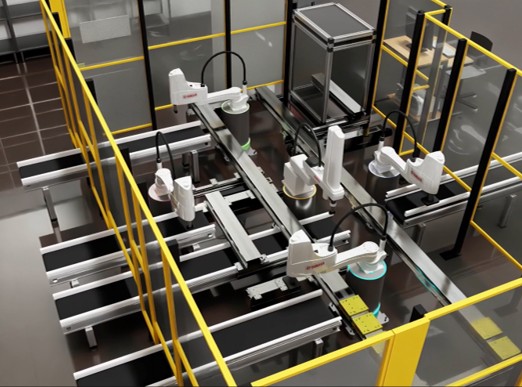
The FactoryLens Add-on provides photorealistic visualization of Visual Components layouts using NVIDIA Omniverse and RTX rendering technology.
FactoryLens can be used to review layouts, create visual presentations, and export content for external use.
Enabling the FactoryLens Add-on
To enable FactoryLens:
- Select File > Options > Add-on.
- Locate FactoryLens Add-on.
- Select Activate and enter your FactoryLens license information.
- Select OK.
- Restart the application.
After restarting the application, FactoryLens becomes available on the Home tab.
Using the FactoryLens Viewport
FactoryLens provides an alternative viewport for viewing layouts.
To open the FactoryLens viewport:
- Go to the Home tab.
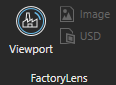
- In the FactoryLens group, select Viewport.
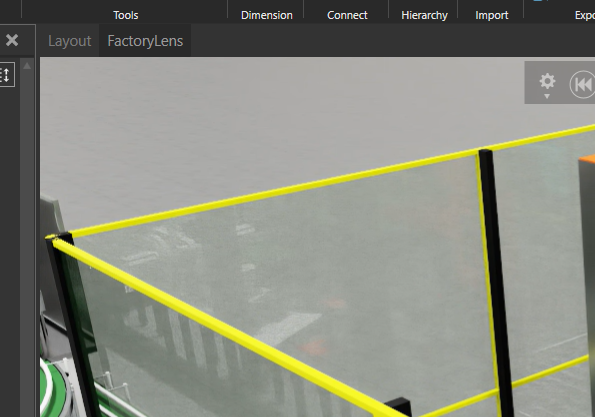
The FactoryLens viewport opens and displays the current layout using RTX rendering technology. Any changes made in the layout are automatically reflected in the FactoryLens viewport.
You can switch between the standard Layout viewport and the FactoryLens viewport at any time.
Exporting from FactoryLens
You can export the current FactoryLens view as an image, video, or USD file.
Export an Image
- Open the layout in the FactoryLens viewport.
- Adjust the camera position as required.
- In the FactoryLens group, select Image.
- Specify the Resolution and File Format of the image and select Export.
- Specify the file name and export location.
- Save the image.
The exported image uses the current viewport settings and camera position.
Export a Video
The simulation starts automatically and video is being recorded. You may navigate 3D view while recording.
- Open the layout in the FactoryLens viewport.
- If you want animated camera movements, configure them with Camera Animator tool, see Animating camera movements.
- In the FactoryLens group, select Video.
- Specify the Resolution and Frame rate of the video and select Start Recording.
- Specify the file name and export location.
- Select Save.
The simulation starts automatically and recording begins. You can continue to navigate the 3D view while recording. - To stop recording and save the video, select Stop and save.
The exported video reflects the content visible in the FactoryLens viewport during recording.
Export a USD File
- Open the layout in the FactoryLens viewport.
- In the FactoryLens group, select USD.
- Select the export File Format and then select Export.
- Specify the file name and export location.
- Save the file.
USD files can be used in applications that support the Universal Scene Description (USD) format.